We are delighted to welcome Gymnasium Rüsselsheim as a new MathCityMap Partner School in Germany!
Teacher Melanie Oelke gives us exciting insights into her work with MathCityMap and shares her positive experiences with her school classes.
“I used MathCityMap for the first time in June 2026 with my Year 6 and Year 7 classes. My aim was for the pupils to revise the key learning content of the school year whilst recognising the link between the maths they learn in class and their everyday lives.
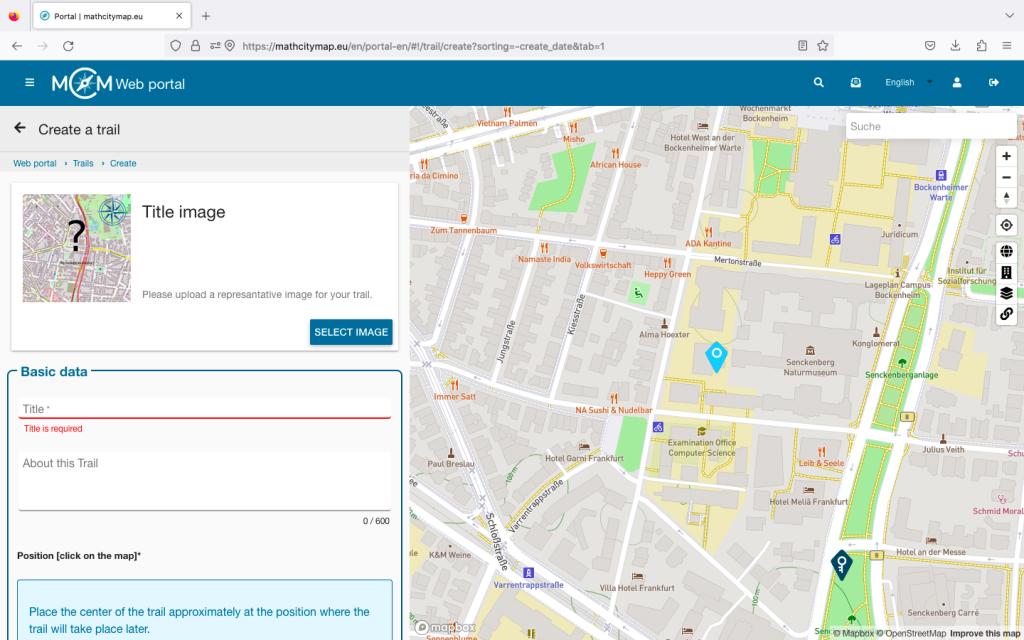
For Year 6, I therefore created a trail that focused primarily on revising fractions. For example, the children were asked to work out the proportion of benches with backrests or to determine what proportion of school lockers were yellow.
The Year 7 pupils mainly calculated the surface areas of objects in the school playground. I came up with the idea for this trail when we were calculating the construction costs for a window pane as part of a textbook exercise. I thought to myself: ‘There must be a more visual way of doing this!’ In the trail, the children therefore had to work out the cost of the tiles for the steps in the school building. They were very motivated by this trail because it helped them to better estimate the school’s overall cost.
The children were already familiar with using digital tools in maths lessons. Above all, however, the competitive aspect of MathCityMap proved to be particularly beneficial. In Year 6, the pupils explored different approaches to solving the problem within their groups, with the aim of finding the correct solution and scoring the most points. As a teacher, I found this particularly rewarding, as we were then able to discuss the advantages of the various approaches in class.
I’m really looking forward to creating and developing trails for my other year groups as well.”
We’re delighted with the great commitment shown and look forward to many more trails from Rüsselsheim!
The package with the official partner school badge and the MCM measuring instruments has already been delivered and we are looking forward to receiving more applications from all over the world.
All further information on the partner school programme and the requirements for application can be found both in the article on the first MCM partner school and on the homepage of our MaSCE³ project.