Dear MathCityMap users,

there is currently a problem with the Android 11 version of the MathCityMap app. Fortunately, our IT team has already been able to identify and fix the cause of the problem. An update can now be installed in the Google Play Store, which makes the app run smoothly again.

We apologize for any inconvenience this disruption may have caused. Please feel free to write to us at info@mathcitymap.eu if we can assist you with any technical difficulties.

Your MCM Team

The October update includes some changes to the web portal. An essential point is the synchronization of list and map view. What does that mean? Previously, the tasks and trails that were visible on the map were not necessarily part of the list. As a result, the list displayed content from different places and possibly different languages.

With the new update, the currently visible map section is linked to the list. Accordingly, only tasks and trails can be seen in the list that can also be found in the current map section. This has the advantage of obtaining relevant data for your location. In addition, much less data must be loaded, which increases the speed of the web portal.

If you want to get an overview of all your tasks, a button (globe icon) on the right edge of the map will help. This zooms on the whole world and thus represents all your content.


Overview of further changes:

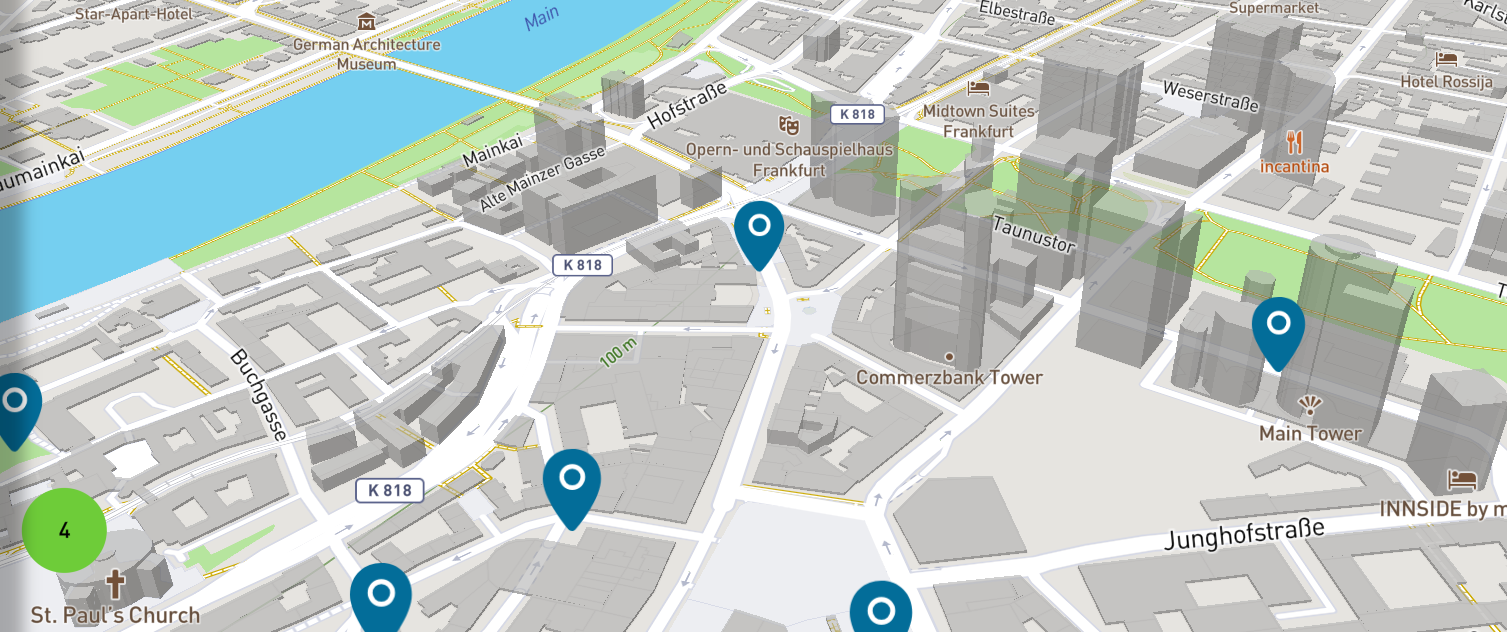
  • New 3D map: The MCM web portal now uses new map technology. This allows you to tilt the map (hold right mouse button and move mouse) and show or hide 3D buildings. The following actions can be performed via the control bar on the right side of the map (from top to bottom):
    • Zoom map (Zoom in)
    • Zoom map (Zoom out)
    • Align to the north
    • Show and center your own position
    • Show entire world map (zoom out to maximum)
    • Show or hide 3D buildings
    • Change map style (Street, Outdoors, Satellite)
    • Loading Indicator (indicates whether data is being reloaded)
  • Revised trail and task preview: Content does not open directly on the first click. Instead, a content preview based on the MCM app opens first.
  • Create or edit a trail: If you open the details of a trail, the list and all other trail pins will be hidden. When switching to edit mode (or when creating a new trail), tasks (Own and Public) in the current map are added to the map, which can then be assigned to the trail. In addition, these tasks also appear in the list. This makes it possible to create a trail using the list. The various sorting options can help keep track of a large amount of tasks.
  • Customization of task and trail pins: The MCM web portal now uses the same pins as the MCM app. Tasks are represented by rounded pins. Trails are represented by square pins. In addition, there is a color and a symbolic distinction:
    • Dark Blue: Own content (created by logged in users)
    • Blue: Foreign (public) content (created and shared by another user)
    • Light Blue: Selected content (eg pin-click to preview or if details are open)
    • Circle icon (currently only trails): Public Trail
    • Key Icon (currently only trails): Private Trail
    • light blue (transparent): Occurs when working on a task and represents the previous task item.
    • Note: The colors will be adjusted and optimized in the near future.
  • New Tasks Wizard – Age of the tree: The task wizard has been extended by another template. The task deals with the calculation of the age of a tree from measured circumference (in cm) and given growth factor of the diameter (in cm per year). At present, there is a wide choice of trees in Europe, such as maple, birch, beech, oak, etc. This task can be found under the category “growth”.
  • Sessions: Running paths are no longer collectively displayed on the map. Instead, each user will see their own track based on their events as soon as they click on the user (list or map). In addition, the events are marked as small circles on the map and can be clicked for more information. It is now possible to retrieve the path of a user later.
  • Review: The review process has been partially changed and adapted:
    • Logged in users can view the review history for their own tasks and trails.
    • If a trail was rejected and a user tries to re-submit it directly, an error message appears. The error message says that first the feedback of all rejected tasks of the trail must be read and confirmed before a re-submission is possible.
    • Reviewers must now leave a message to complete a review.
    • A trail can only be published if none of the tasks have recently been rejected.
    • Reviewers will now receive a quick feedback as soon as they have made a decision.
    • If a trail is submitted for publication, a reviewer can now see all the tasks of the trail, even if they do not need to be reviewed. In terms of color, these are coded as follows:
      Light blue opaque: Task Waiting for Review
      Light blue transparent: Task has already been published
      Red: Task has already been rejected
  • Other changes:
    • Trails can now be sorted by downloads
    • New trails are highlighted in the list with a green star
    • GPS tasks now use a small red circle instead of large pins to mark positions. In addition, hints were added on how to set markers or coordinate system.
    • Extract position from images: If you upload an image for a task and it contains position data, a message appears asking if the user wants to use the image position to set the location of the task.
    • If the portal is called with an extended URL that points to a content, the user can choose to jump to that content or start the portal as usual.
    • Many alerts have now been replaced with more user-friendly custom alerts.
    • Bugfixes when creating sessions: If a session exceeds the permitted duration of 48h, an error message appears, which prevents the creation of the session. Furthermore, an automatic task assignment error was corrected in Custom mode, where the task titles were not displayed.
    • Fixed an error when changing the share for a group.
    • Updating frameworks (AngularJS, FontAwesome)
    • Small bug fixes and style adjustments

Ahoy mateys! A new exciting feature for MathCityMap is now available both in the App and Web portal – Narratives. Narratives carry the app users away to new thematic settings. The route creators can optionally enable a specific narrative for each of their routes, the narrative gets automatically applied and can be experienced after downloading the route in the App.

The App’s text (such as task descriptions, hints, answer feedback, etc.), is replaced or expanded with dialogue lines from the narrative assistant: a companion that travels alongside the player and aids in their quest. The App’s graphical elements (banners, backgrounds, the map, etc.) are replaced with elements allusive to the narrative.

Our first narrative: Pirates!

And so, we present the first narrative: Pirates!

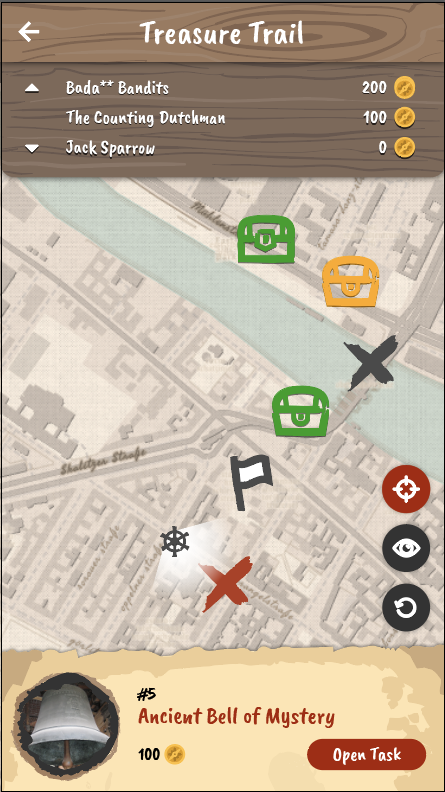
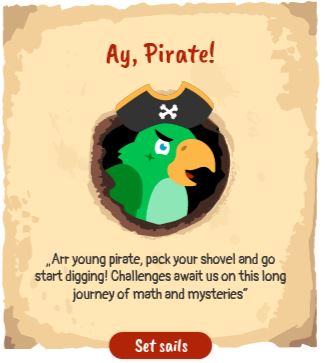
In this narrative the player is a pirate Captain that seeks to collect as many coins as possible and find the trail’s treasure! They are accompanied by their trusty parrot, Perry. Perry will help them solve riddles, getting them closer to the treasure one enigma at a time. When all the riddles are solved, the Captain finds the treasure!

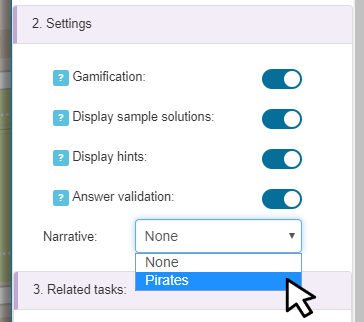
To enable a narrative on a route, go to: Portal > Routes > My Routes and select the route. Then, on the route’s details click “Edit”, scroll down to the “2. Settings” tab and select the desired narrative from the dropdown list. After this, you just have to click “save” and the narrative will be applied. From that point on, when users download your route, they will have a new adventure awaiting for them.

New Graphics

The trail is now represented by a treasure map

Companion

Perry the parrot accompanies the player on his adventures.

Enabling narratives

In the section “2. Settings” select a narrative from the dropdown menu.

Our objective is to provide the MathCityMap App users with fun experiences that feel distinct, fresh, but still follow the general flow of the original math trail solving experience. As such, narrative routes will immerse the users in a small story and improve their motivation to continue solving the tasks and try even more routes.

Other changes

  • Introducing LaTex to MCM (App & Web): Writing mathematical formulas with the computer is not always easy. For a long time we have planned to support LaTex formulas in MCM. Finally, this feature is available to all users through the integration of the MathJax library. Find a documentation here.
  • Click images to enlarge (App): Images such as the title image, hint images or sample solution images can now be viewed and zoomed in a separate view, just click them.
  • Minor bug fixes.

Today’s update extends the web portal with an important new feature. The mobile version of the portal (e.g. on mobile devices) now automatically starts in the so-called “draft mode”. It is a reduced and light weight view that displays the map and a plus button at the bottom right hand corner. Clicking this button allows to quickly create a task draft. Just add a picture via your smartphone and click on the “Get position” button to automatically set your position. The task draft will be accessible in the “My tasks” area. This features allows users to quickly create a task draft while they are outside that can be polished and finished later on at home. There is still the possibility to use all web portal functionalities on your mobile as well – just switch to “Default mode”. For more information take a look at the attached tutorial video.


Further changes:

  • Added caching of tasks: Freshly created task will be cached. If a user closes the new task form by mistake, the task creation can be continued by clicking on “New task” > “Draft”. This behaviour should prevent data loss.
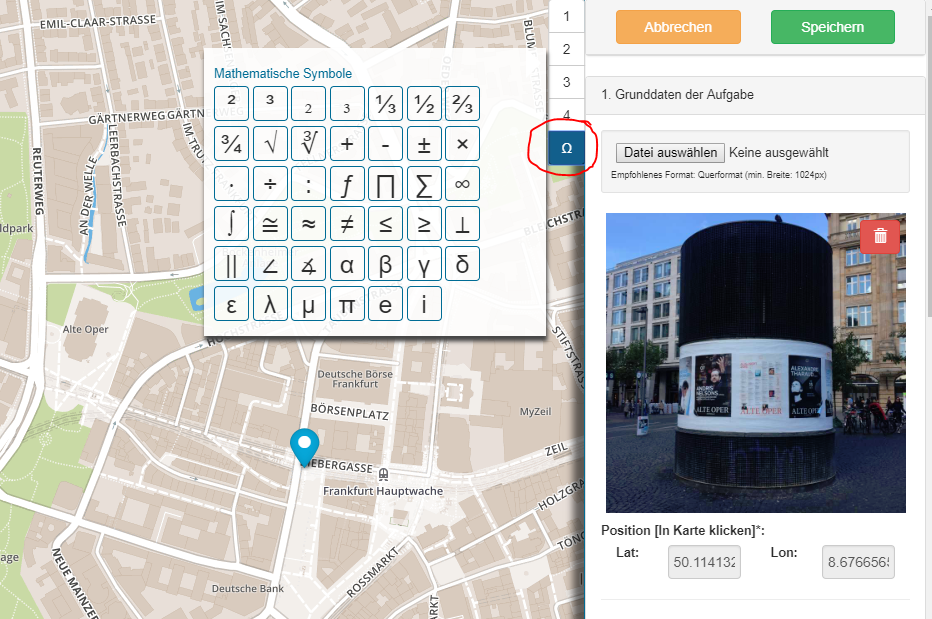
  • Added possibility to remove task images: Title images and sample solution images may now be marked for deletion by clicking on the “Trash”-icon of the according image while editing a task. When the user saves the made changes, the marked images will be deleted (see image 4).
  • Moved mathematical symbols to the quick-jump bar: One can now toggle the mathematical symbols table via the “Omega”-sign inside the quick-jump bar next to the details window. (see image 3)
  • Preparation for the ‘digital classroom’ and sub tasks: Made many backend changes and adjustment to prepare the web portal for the introduction of the ‘digital classroom’ and sub tasks that will be activated this year.
  • Other changes:
    • Items that were shared by a group will be highlighted with the group name they come from inside the list view.
    • Removed gamification option ‘Leaderboard’ from trails menu. This option will be available again in the ‘digital classroom’ feature.
    • Fixed problems with decimal numbers in the task wizard in Internet Explorer and Firefox.
    • Small bugfixes and style changes.


Today’s update fixes a bug that has been around since the beginning of the portal and that you’ve almost gotten used to:

Images that were taken upright were not interpreted correctly by the portal and therefore displayed in landscape mode. This should be fixed right now!

Further changes in the overview:

  • Statistics: How many times has my trail been downloaded? This information can be found in the trail list. It contains the number of PDF and app downloads. Nevertheless, the app downloads have only been saved since the last app update (early June).
  • Quick-Jump-Buttons: At the top left of the detailed view of tasks and trails you can find so-called “Quick-Jump-Buttons” that allow you to jump directly to a desired area.
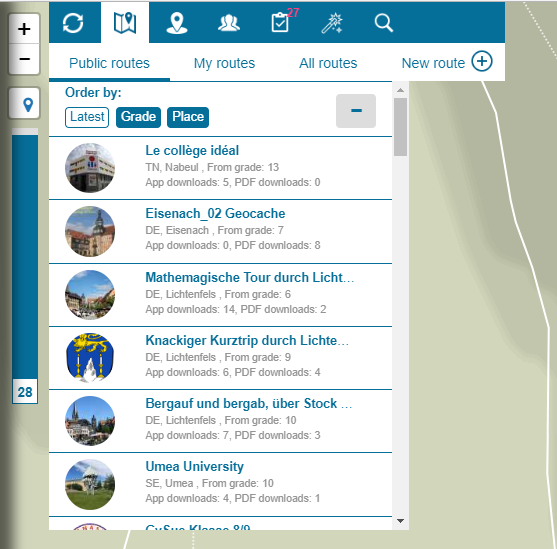
  • List view with preview images: The list view also displays a preview image of a trail or task (so-called thumbnails, see title picture). This is possible because now uploaded images are stored in different resolutions in order to represent the most suitable on the smartphone. The overview of related tasks for a trail also contains a preview image.
  • Other changes: Minor bug fixes and many hidden changes were made to make things smoother. It will now be used to minify the Javascript files “Gulp”.

After improving the task and trail details in our last portal update, this update focuses on the toolbar. The main aim of these updates is to get MathCityMap on a well established technical level and to make sure that a higher amount of data do not affect the functionality.

Overview of all Changes:

  • Data in the lists are loaded asychronously
  • Revision of the working groups
  • Possibility to cancel content from the review process
  • Revision of the searching function
  • Minor bug fixing

Working Groups

  • In the list “My Tasks” and “My Routes”, you can see the items which are shared within a group, mixed with your own contents. The group items are marked with a coloured circle and the initials of the author.
  • Shared content cannot be shared, published or deleted by other group members.
  • If you share a trail with a group, automatically all tasks from the trail are shared as well.
  • The working group list shows further information, e.g. number of members and number of shared contents.
  • In the details of the working group, you can change the colour of the group (randomly chosen out of 10 fixed colours) and the shared tasks and trails are listed.

Review Process

  • After asking for publication of a content, you can cancel the review process by clicking the button “Cancel Publication”. This can be helpful in case you asked for publication by mistake.

Search Function

  • The search function opens a new tab with three entries:
    Routes – Here are trails listed that can be found via search
    Tasks – Here are tasks listed that can be found via search
    New Search – Opens a search box (send via ENTER or click on the magnifier)
  • With the button Search Settings, one further has the opportunity to configurate the search, e.g. the time slot of the task creation or an interval for the grades. Apart from this, one can choose in which fields contents should be searched.

Minor Bug Fixing

  • Through various actions, the portal can come into different states. Earlier, it was not systematic enough so that some actions led to error states. The states are now managed standardized and systematically. This should help to avoid and easily regulate errors.
  • Opening tasks and trails integrates so called GET parameters into the address bar, e.g. to send a specific trail via link (Attention: The content must be visible for the receiver). With the new update, it is further noted in which sub tab the portal is during the starting process.
  • The loading bar was changed into a loading circle with a message on the current process. Further, it is integrated more consitently. This should show the user what happens in the background.
  • Task, Box: Sample Solution: The bug that deleted the picture of the sample solution while changing the text of the sample solution was fixed.
  • Picture Upload: The bug that hindered the process of uploading a picture with the same filename was fixed.

You might have already noticed that the MCM website has recently changed. In this article, we want to inform you about the most important changes.

Overview:     

  • Responsive layout    
  • New MCM Twitter account
  • New languages     
  • New wizard tasks (GPS, escalator speed)    
  • Changed workflow for trails and tasks     
  • Mathematical symbols    
  • Tasks: New function “About the object”     
  • Switch to web technology “AngularJS”  

Layout

The most obvious are the layout and design changes. The MCM surface has received a new design, both in the portal and on the website. As part of the changes, we included the new logo, updated the slider images, and implemented a responsive layout, which makes the website useable on mobile devices. In the box of the right sidebar, the languages ​​Italian and Greek were recently added. In addition, there is a MCM Twitter channel where we inform you about current events such as training courses, our European MoMaTrE project or topics related to Mathtrails. We are looking forward to welcome you as our followers. Our tweets can be found in the box “Social Media”.

Changed Workflow in the Portal

We are currently working at full speed to rebuild the portal to a modern framework in order to develop the project faster in the future, and in order to be able to better maintain it. In spite of extensive testing, bugs may occur in this process, so please let us know if you notice something. Trails and tasks have been restructured with the latest updates. The individual boxes are now divided into sections. Tasks have received a new box. It is called “About the Object” and provides space for information that is not directly related to the Mathtrail task. In the app, the entered data are displayed below the actual task so that interested users can find out more about the object (e.g. historical or cultural information).

Another change concerns the processing of already existing tasks and trails. Prior to the update, each field had to be changed by clicking on the “edit pen” and then saving it. This has now been changed through two different views of a task or a trail. When the details are opened, you can view the task and its data as well as possible actions (e.g. publishing or sharing for a group). Through clicking on the “Edit” button on top, you  can edit all boxes directly and then save them.

A few months ago, we added a table of math symbols to the tasks. When you click in a text box, an “omega” icon appears next to the text box. If you focus the symbol with the mouse, the table appears. Clicking on the desired symbol inserts it into the text field.  

What’s next?

The most exciting extension we are currently working on is the so-called “pedagogical trails”. These should allow the teacher (with the approval of the students) to follow the progress of the students. In addition, push messages will be introduced to help groups in the solution process and to better organize and control the process of the mathtrail. The following points are also still on the to-do list:    

  • Subtasks     
  • Profile pages for users     
  • Statistics on the use of trails and tasks

It has been a bit longer since there was a bigger update of the MCM web portal. But now it is time and it brings two major innovations with it.

Task Wizard

The Task Wizard allows you to create complete tasks with a few clicks. The author has to find a suitable object in his environment, take a picture of it and collect the necessary measurement data. The remaining entries, such as the sample solution and notes, are automatically generated and inserted by the wizard. At first, a set of 12 task templates from the topics slope, number, volume / weight and combinatorics are available. The templates originate from our collection of blueprint tasks and can be formulated on objects which, according to experience, occur almost everywhere:

• Handrail of a Staircase

• Ramp

• Stone Wall

• Paving Stones

• Advertising Pillar

• Large Stones

• Wooden Trunk

• Water basin / fountain.

The task wizard will be expanded step by step. Suggestions for new task templates from the community are gladly taken up! To start the wizard, you just have to click on “New Task” in the portal, then select the magic wand and afterwards you can start.
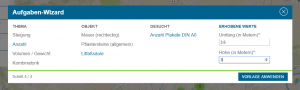
For a time-consuming, but still good trail, we recommend about 5 own tasks, which are individual and unique for the place, mixed with 5 tasks from the task wizard.  

Quality Traffic Light

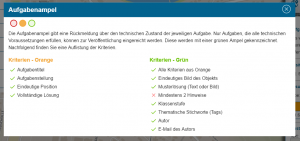
Tasks and routes now have a so-called “Quality Traffic Light” which reflects the technical quality of the element. The traffic light is located in the area where the picture is displayed. By clicking on the traffic light, you can see which criteria are already fulfilled and which can be improved. To ensure that our public tasks and trails continue to be of a high quality, only tasks and routes that show the green light can be submitted for publication.  
Further changes:

• In the route view, the path within the route is also displayed. The starting task is marked with a blue circle.

• Tasks can now be added / removed to a route using a button (“Add / Remove”) in the task preview. This should facilitate routing.

• Quotation marks and line breaks in hints, sample solutions and task texts are now displayed correctly.